Toolbar and External Tool Window
The Toolbar provides quick access to Hot Design tools and is available in two configurations: fixed in-app or in a separate external window. This flexibility lets you choose the layout that best fits your workflow and screen space.
Toolbar Overview
The Toolbar contains all the essential Hot Design controls:
- Enter/Exit Hot Design mode
- Selection / Interactive toggle to test your app
- Undo/Redo changes
- Form Factor and zoom settings
- Theme toggle (light/dark)
- Connection Status and Hot Reload updates
- Visibility Options to show/hide tool panels
For a full reference of every button, see Toolbar.
Fixed In-App Toolbar
By default, the Toolbar appears as a fixed bar at the top of your running app window.

Using the Fixed Toolbar
- Click any toolbar button to activate its function.
- Use keyboard shortcuts for quick actions (e.g.,
Ctrl + Shift + Ato toggle all tool panels). - The toolbar remains visible as you design, without moving or resizing.
External Tool Window
Alternatively, you can open Hot Design tools in a separate external window — useful when working on smaller screens, when designing an app running on a device, or when you want to keep your app view clean and uncluttered.
Enable External Tool Window
To move tools to an external window:
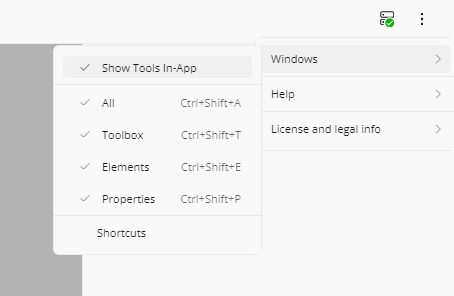
- Click the More menu (three dots) in the toolbar.
- Toggle Windows > Show Tools In-App.
- A new external window launches with a full copy of the toolbar and all tool panels.
What Happens When You Launch the External Window
- A separate window process opens on your development machine (independent of your app window), launched for you by the development server — there is no second app for you to start.
- The window title reads Hot Design - <app name>, so you can tell which app it is driving.
- Until it has connected and received its initial data, a centered progress ring is shown and no tool panels are visible.
- Once loaded, the toolbar runs across the top; the Toolbox and Elements panels share the left side split vertically, and the Properties panel occupies the right. Draggable splitters separate the two sides, and the Toolbox/Elements split.
- Your app view becomes larger and less cluttered — the running app itself remains the visual design surface, and the external window contains only tool panels.
- All tools communicate with your running app in real time: selecting an element, dragging a control from the Toolbox, or editing a property applies to the app running on the target device, and selection and hierarchy state stay in sync in both directions.
Differences from the In-App Designer
| In-app | External window | |
|---|---|---|
| Hot Reload status indicator | Shown | Not shown |
| Per-panel Windows toggles | Available | Disabled — the window always shows its full set of panels |
| Drag-and-drop from the Toolbox into the app | Supported | Not supported — drop onto the Elements tree, or double-click a Toolbox item |
| Zoom, scroll, and form factor | Available | Not available from the tool window |
| Previews mode | Available | Not available — the canvas is switched back to Application mode when the window opens |
The window follows the designer's theme: it opens in whichever theme the designer was in, and switches when you toggle the theme while it is open. If you have never dismissed the Hot Design first-launch introduction, it is shown over the window content — and dismissing it there dismisses it for the app-side designer too.
While a design change, undo, or redo is being applied, a dimmed overlay with a progress ring and an Updating, Undoing, or Redoing message covers the tool panels, and disappears when the operation completes.
Advantages of the External Window
- Maximizes app canvas space
- Better for small/mobile device screens
- Keep tools on a second monitor or separate workspace
- Cleaner main app view during design sessions
- Ideal for mobile (iOS, Android) development
Returning to In-App Tools
To switch back to the fixed in-app toolbar:
- In the external window, click More > Windows > Show Tools In-App.
- The external window process closes.
- The toolbar and panels reappear in your main app view at the top.
Closing the external window yourself deactivates Hot Design in the running app.
Interactive Mode and Suspended States
Because the external window has no canvas of its own, it tells you when the app is in a state where the tools cannot be used, and offers a way out:
| App state | What the window shows |
|---|---|
| Interactive mode is on | An Interactive mode dialog explaining the app is running interactively, with a Pause button that ends interactive mode and resumes design editing |
| Hot Design is suspended | A Hot Design suspended dialog explaining this state lets you restart editing quickly without reloading Hot Design, with a Hot Design button that reactivates it with external tooling |
| The app has been closed | An Application closed dialog explaining the window stays open to preserve your workspace; close it, or relaunch the app to continue |
The window also closes itself within a few seconds if the development server process that launched it exits or is killed.
Toolbar Location Persistence
Your choice of in-app or external window is remembered and will be restored when you:
- Exit and re-enter Hot Design mode
- Close and restart your app
- Switch between different design sessions
No need to reconfigure your preference each time — Hot Design remembers your layout choice.
Platform-Specific Behavior
Desktop and WebAssembly
Both fixed in-app and external window modes work smoothly. External window is especially useful when you have multiple monitors.
Mobile Targets (iOS, Android)
- External window is the default for mobile targets to preserve app screen space. The tools open on your development machine while the app on the device keeps showing its own content as the design surface.
- Fixed in-app toolbar is still available, but takes up valuable screen real estate on smaller devices.
Recommendation
- Desktop development: Use fixed in-app for simplicity, or external window if you have extra screen space.
- Mobile development: Use external window to see your app layout on the full device screen.
Window Sizing and State
- The external window opens at the platform's default size, and you can freely resize, maximize, or move it.
- Panel proportions are adjustable with the splitters, but are not persisted: closing and relaunching the window returns them to their defaults.
Troubleshooting
External Window Won't Open
- Cause: The external tool process failed to launch.
- Solution: An error notification is shown and the designer reverts to showing the tools in-app, so you are not left without tools. Check that you have sufficient system resources and that no errors appear in the app output, then try again.
External Window Lost or Hidden
- Cause: The external window may be off-screen or minimized.
- Solution: Close the external window from the More menu and launch it again. Requesting the external window while one is already open for the same app brings the existing window to the foreground rather than opening a second one.
Tools and App Not Syncing
- Cause: Connection between the external window and app was lost.
- Solution: Check your connection status (the connection icon in the app-side toolbar). If offline, reconnect and try again.
Related Topics
- Toolbar — Detailed toolbar button reference
- Getting Started — Set up Hot Design for your first time
- Keyboard Shortcuts — Quick reference for all keyboard shortcuts
- Troubleshooting — Known issues and workarounds