Get Started with Visual Studio 2022
This getting started will guide you through the creation of an Uno Platform application using C# and .NET. You can choose to use XAML or C# Markup to declare the UI of your application.
Tip
This guide covers development on Windows using Visual Studio 2022. If you want to use another environment or IDE, see our general getting started.
Install Visual Studio with Workloads
To create Uno Platform applications you will need Visual Studio 2022 17.7 or later:
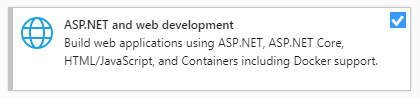
ASP.NET and web development workload installed (for WebAssembly development)
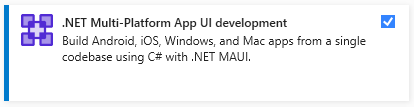
.NET Multi-platform App UI development workload installed (for iOS, Android, Mac Catalyst development).
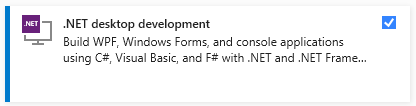
.NET desktop development workload installed (for Gtk, Wpf, and Linux Framebuffer development)
Important
Uno Platform 5.0 does not support Xamarin projects anymore. To build Xamarin-based projects in Visual Studio 2022, in Visual Studio's installer Individual components tab, search for Xamarin and select Xamarin and Xamarin Remoted Simulator. See this section on migrating Xamarin projects to .NET 6.
Finalize your environment
Open a command-line prompt, Windows Terminal if you have it installed, or else Command Prompt or Windows Powershell from the Start menu.
a. Install the tool by running the following command from the command prompt:
dotnet tool install -g uno.checkb. To update the tool, if you already have an existing one:
dotnet tool update -g uno.checkRun the tool from the command prompt with the following command:
uno-checkFollow the instructions indicated by the tool.
You can find additional information about uno-check here.
Install the Solution Templates
Launch Visual Studio 2022, then click
Continue without code. ClickExtensions->Manage Extensionsfrom the Menu Bar.
In the Extension Manager expand the Online node and search for
Uno, install theUno Platformextension or download it from the Visual Studio Marketplace, then restart Visual Studio.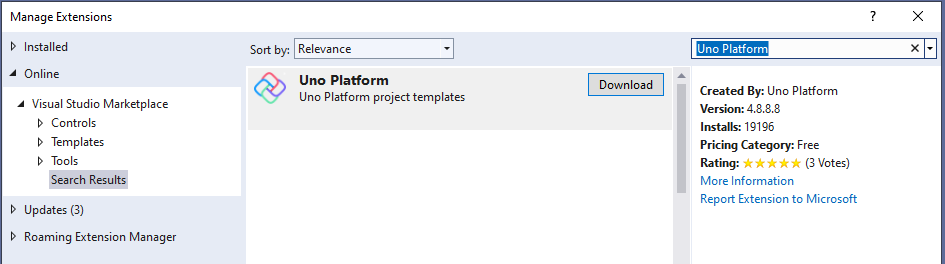
Create an application
To create an Uno Platform app:
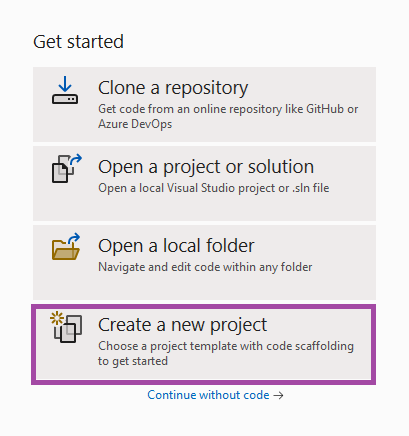
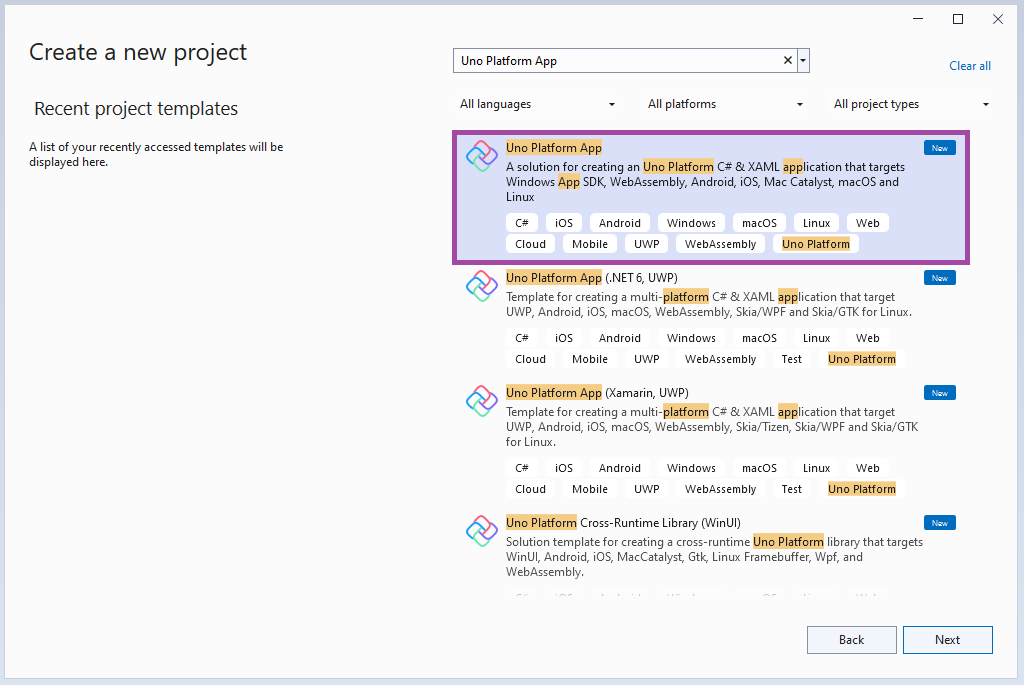
Create a new C# solution using the Uno Platform App template, from Visual Studio's Start Page, then click the Next button
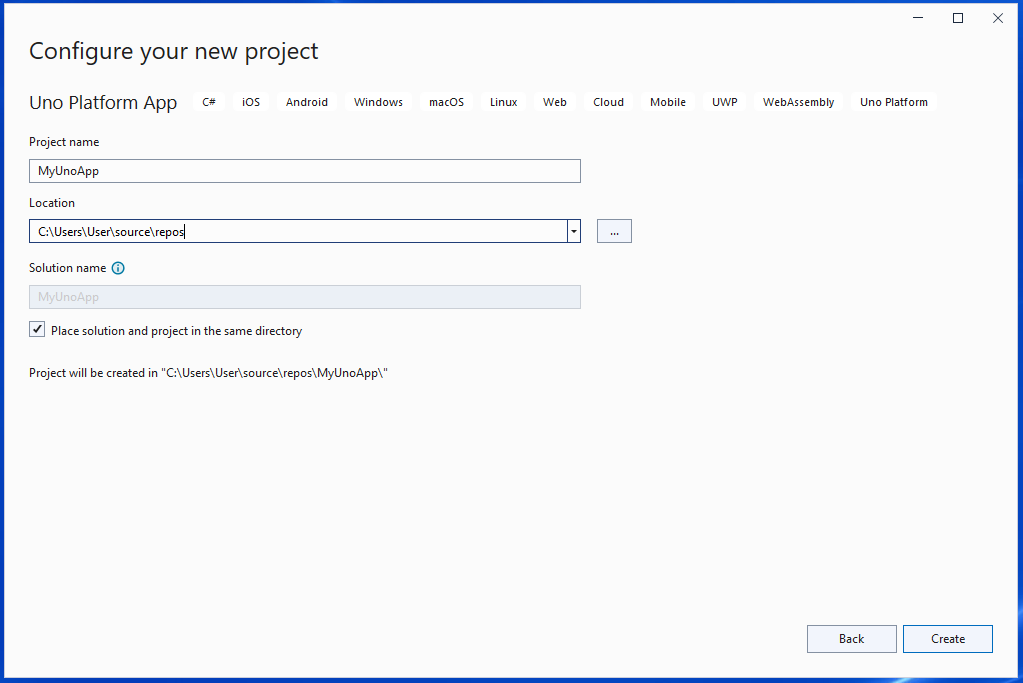
Configure your new project by providing a project name and a location, then click the Create button
Choose the base template to build your application
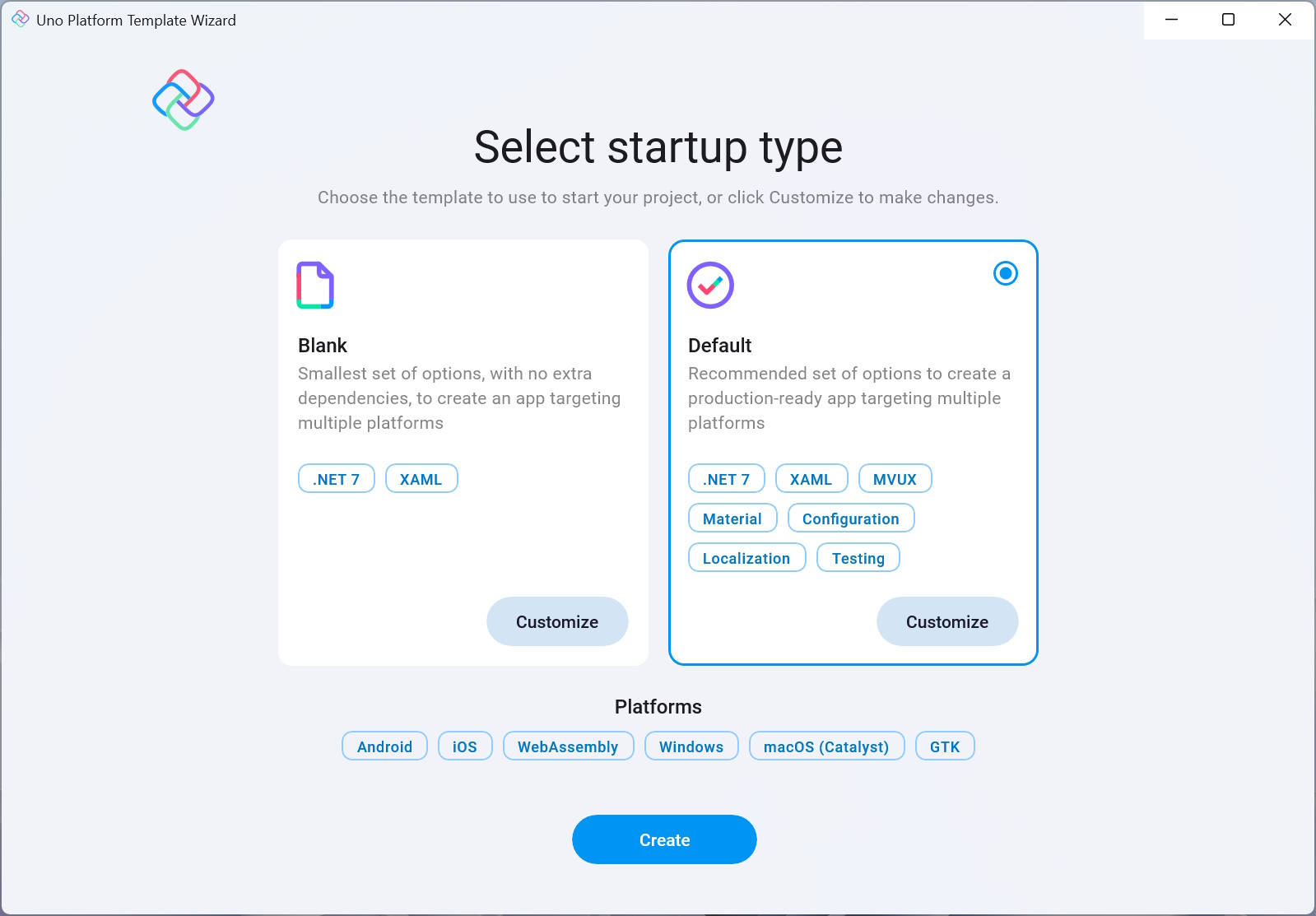
You can optionally choose to customize your app based on the sections on the left side:
- Framework allows to choose which
TargetFrameworkyour app will use. .NET 7.0 is a commonly appropriate choice. - Platforms provides a list of platforms your application will support. You still can add additional platforms later.
- Presentation gives a choice about using MVVM (e.g. MVVM Toolkit) or Uno Platform's MVUX and Feeds
- Markup allows to choose between XAML and C# Markup for defining your UI
- Theme gives the ability to change between Fluent and Material
- Extensions allows to choose for additional Uno.Extensions to kickstart your app faster
- Features provides support for WebAssembly PWA and optional VS Code support files
- Authentication provides support for authenticating suers with Azure AD, Web or Identity Server based authentication
- Application sets the App ID for relevant platforms, used when publishing on various app stores.
- Testing provides Unit Testing and UI Testing projects
- CI Pipeline provides a GitHub Actions workflow or Azure Pipelines files necessary to build your app on every commit
Tip
For a detailed overview of the Uno Platform project template wizard and all its options, see this.
- Framework allows to choose which
Click the create button
Wait for the projects to be created, and their dependencies to be restored
A banner at the top of the editor may ask to reload projects, click Reload projects:

To debug the Windows head:
- Right-click on the
MyApp.Windowsproject, select Set as startup project - Select the
Debug|x86configuration - Press the
MyApp.Windowsbutton to deploy the app - If you've not enabled Developer Mode, the Settings app should open to the appropriate page. Turn on Developer Mode and accept the disclaimer.
- Right-click on the
To run the WebAssembly (Wasm) head:
- Right click on the
MyApp.Wasmproject, select Set as startup project - Press the
MyApp.Wasmbutton to deploy the app - To run/debug your WebAssembly app on a mobile device, you can utilize the Dev Tunnels feature of Visual Studio 2022 - see Microsoft Learn documentation to get started
- Right click on the
To run the ASP.NET Hosted WebAssembly (Server) head:
- Right click on the
MyApp.Serverproject, select Set as startup project - Press the
MyApp.Serverbutton to deploy the app
- Right click on the
To debug for iOS:
Right-click on the
MyApp.Mobileproject, select Set as startup projectNote
For information about connecting Visual Studio to a Mac build host to build iOS apps, see Pairing to a Mac for .NET iOS development. Catalyst apps are not supported in Visual Studio 2022 on Windows, you can use VS Code Remote SSH to enable this scenario.
In the "Debug toolbar" drop-down, select framework
net7.0-ios: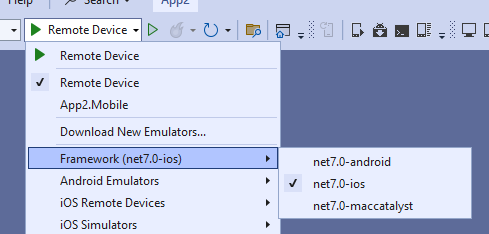
Select:
An active device, if your IDE is connected to a macOS Host
A local device using Hot Restart, to debug your application without connecting to a mac
Note
If no iOS devices are available, a Visual Studio 17.7+ issue requires unloading/reloading the project. Right-click on the
.Mobileproject and select Unload Project then Load project.
To debug the Android platform:
- Right click on the
MyApp.Mobileproject, select Set as startup project - In the Debug toolbar drop down, select framework
net7.0-android - Select an active device in the "Device" sub-menu
Note
If no android devices are available, a Visual Studio 17.7+ issue requires unloading/reloading the project. Right-click on the
.Mobileproject and select Unload Project then Load project.
- Right click on the
You're all set, and don't forget to take a look at our Hot Reload feature! You can now head to our tutorials on how to work on your Uno Platform app.
Important
Take a look at our article in order to ensure that your solution is building and showing intellisense as fast as possible, and to avoid this Visual Studio issue (help the community by upvoting it!) where multi-targeted project libraries always build their full set of targets.
Troubleshooting Installation Issues
You may encounter installation and/or post-installation Visual Studio issues for which workarounds exist. Please see Common Issues we have documented.
Getting Help
If you continue experiencing issues with Uno Platform, please visit our GitHub Discussions or Discord - #uno-platform channel where our engineering team and community will be able to help you.