Uno Material Toolkit Library
UnoFeatures: Toolkit;Material (add to <UnoFeatures> in your .csproj)
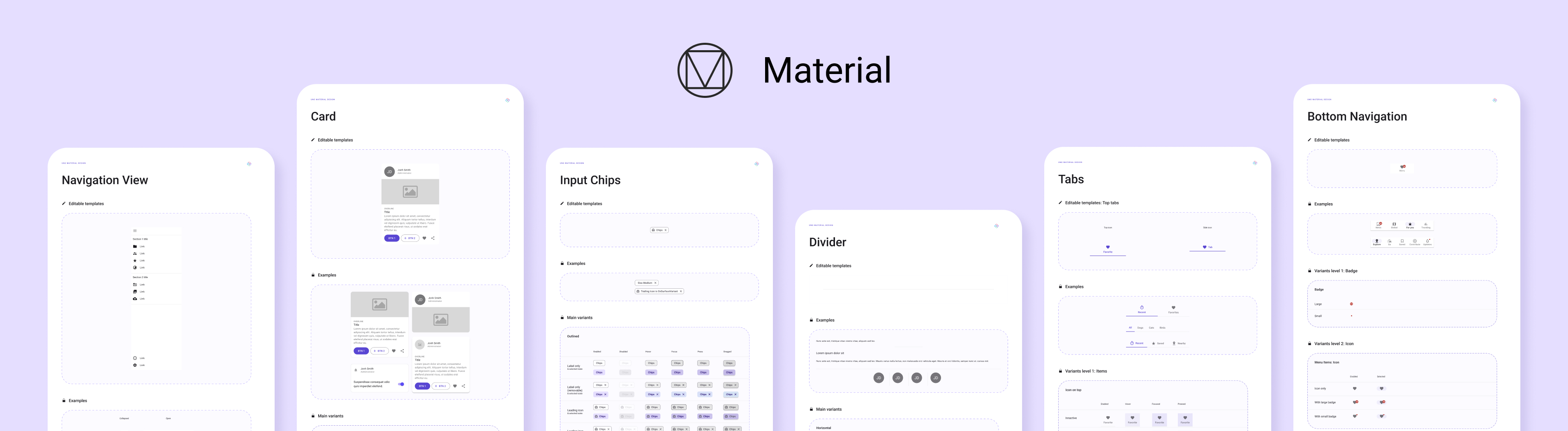
The Uno Material Toolkit provides a set of resources and styles based on Material Design guidelines for the controls included in the base Uno Toolkit library
Getting Started
Initialization of the Material Toolkit resources is handled by the specialized MaterialToolkitTheme ResourceDictionary.
MaterialToolkitTheme
Note
The MaterialToolkitTheme class also handles the required initialization of the Uno Material resources. Therefore, there is no need to initialize MaterialTheme within the App.xaml
Constructors
| Constructor | Description |
|---|---|
MaterialToolkitTheme() |
Initializes a new instance of the MaterialToolkitTheme resource dictionary. |
MaterialToolkitTheme(ResourceDictionary? colorOverride, ResourceDictionary? fontOverride) |
Initializes a new instance of the MaterialToolkitTheme resource dictionary and applies the given overrides |
Properties
| Property | Type | Description |
|---|---|---|
ColorOverrideSource |
string |
(Optional) Gets or sets a Uniform Resource Identifier that provides the source location of a ResourceDictionary containing overrides for the default Uno.Material Color resources |
FontOverrideSource |
string |
(Optional) Gets or sets a Uniform Resource Identifier that provides the source location of a ResourceDictionary containing overrides for the default Uno.Material FontFamily resources |
DefaultDensity |
Density |
(Optional) Gets or sets the density preset that drives the base spacing unit used by all Space* tokens. Default is Regular. Accepted values are Compact (3 px), Regular (4 px), and Comfy (5 px). |
DefaultCornerRadius |
double |
(Optional) Gets or sets the base corner radius unit (in pixels) used to compute all shape scale tokens (Radius100, Radius200, …) as multiples of this value. Default is 4. |
Installation
Note
Make sure to setup your environment first by following our instructions.
Creating a new project with the Uno Material Toolkit
Follow the steps in the Getting Started with Visual Studio instructions to launch the Uno Platform Template Wizard.
Select
Materialunder theThemesection.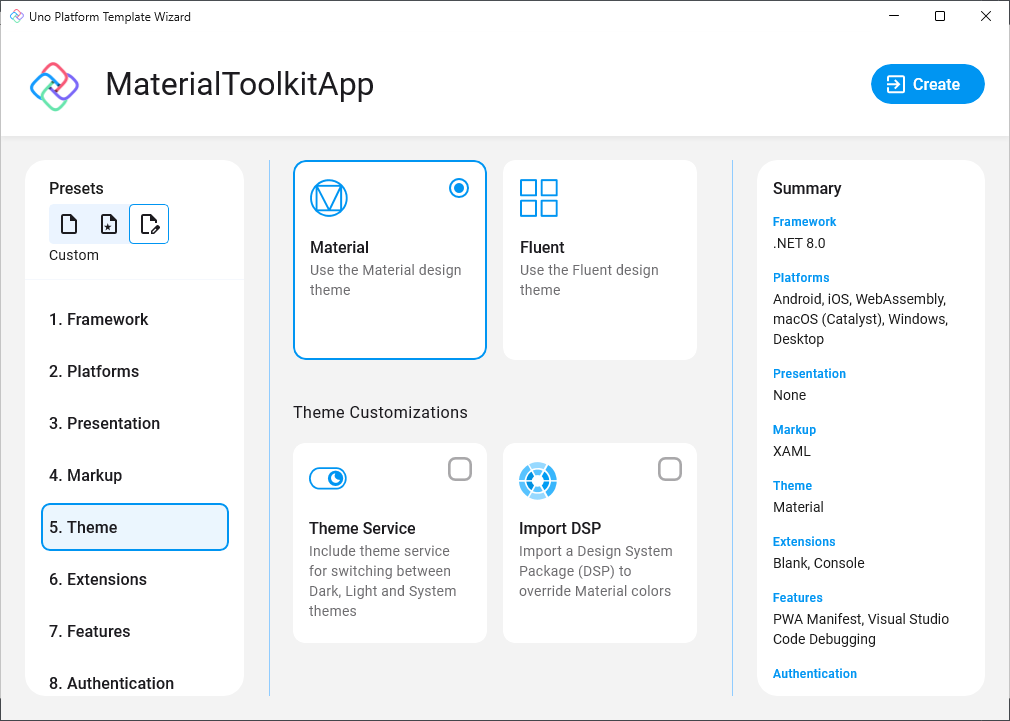
Select
Toolkitunder theFeaturessection.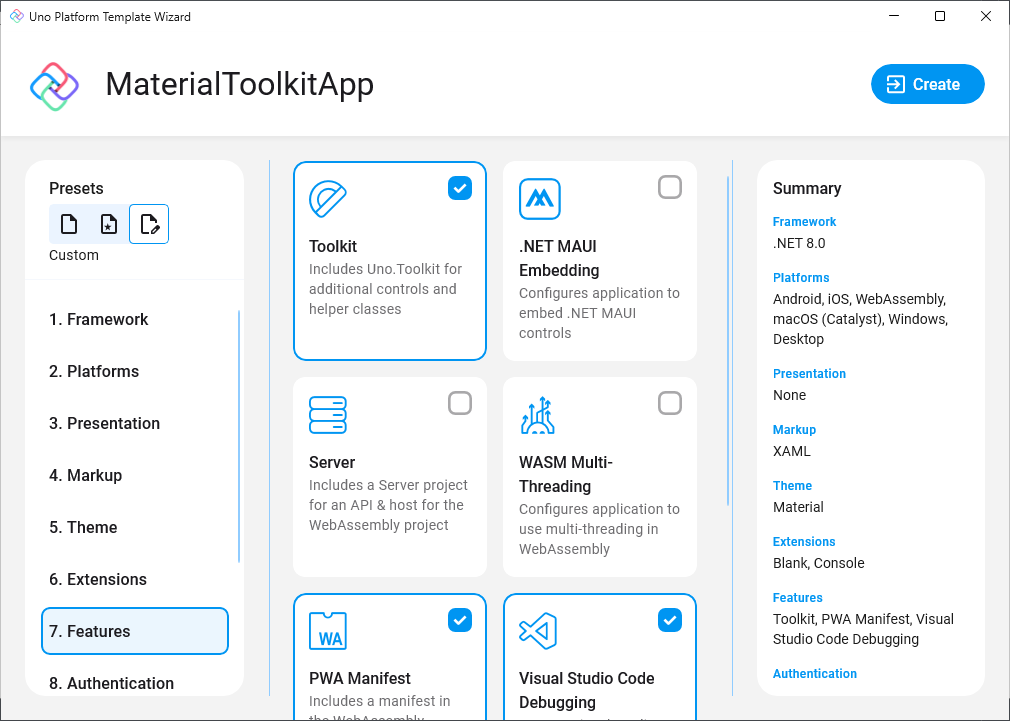
Installing Uno Material Toolkit in an existing project
Depending on the type of project template that the Uno Platform application was created with, follow the instructions below to install the Uno Material Toolkit.
- Single Project Template
- Multi-Head Project Template (Legacy)
- Shared Project (.shproj) Template (Legacy)
Edit your project file (
PROJECT_NAME.csproj) and addToolkitandMaterialto the list ofUnoFeatures:<UnoFeatures>Toolkit;Material</UnoFeatures>Initialize
MaterialToolkitThemein theApp.xaml:<Application.Resources> <ResourceDictionary> <ResourceDictionary.MergedDictionaries> <!-- Code omitted of brevity --> <MaterialToolkitTheme xmlns="using:Uno.Toolkit.UI.Material" /> </ResourceDictionary.MergedDictionaries> </ResourceDictionary> </Application.Resources>
Customization
With MaterialToolkitTheme, you do not need to explicitly initialize ToolkitResources, MaterialTheme, MaterialColors, or MaterialFonts. This means that all resource overrides should go through MaterialToolkitTheme itself. There are two properties on MaterialToolkitTheme that you can set within your App.xaml.
Customize Colors
Follow the Uno Material Customization guide to create a ColorPaletteOverride.xaml file and add it to your application project.
In App.xaml, use the ColorOverrideSource property on MaterialToolkitTheme:
<MaterialToolkitTheme xmlns="using:Uno.Toolkit.UI.Material"
                      ColorOverrideSource="ms-appx:///Style/Application/ColorPaletteOverride.xaml" />
Customize Fonts
Follow the Uno Material Customization guide to create a FontOverride.xaml file and add it to your application project.
In App.xaml, use the FontOverrideSource property on MaterialToolkitTheme:
<MaterialToolkitTheme xmlns="using:Uno.Toolkit.UI.Material"
                      FontOverrideSource="ms-appx:///Style/Application/FontOverride.xaml" />
Seed Color Customization
MaterialToolkitTheme supports seed-based color generation using the Material Design 3 HCT color space. A single seed color is used to derive the full tonal palette (Primary, Secondary, Tertiary, Neutral, and Error), for both Light and Dark themes.
By default, no seed is set and MaterialToolkitTheme uses the Material color palette. To opt into seed-based generation, set a seed via the Colors property:
<MaterialToolkitTheme xmlns="using:Uno.Toolkit.UI.Material"
                      xmlns:ut="using:Uno.Themes">
    <MaterialToolkitTheme.Colors>
        <ut:ThemeColors PrimarySeed="#FF6B35" />
    </MaterialToolkitTheme.Colors>
</MaterialToolkitTheme>
You can also change the seed color at runtime from C#:
using Uno.Themes;
using Windows.UI;

// Change the primary seed color at runtime
SemanticThemeHelper.PrimarySeed = Color.FromArgb(0xFF, 0xFF, 0x6B, 0x35);

// Clear the seed to revert to the default palette
SemanticThemeHelper.PrimarySeed = null;
For more details, see the Seed Color Palette documentation.
Using C# Markup
The Uno Material Toolkit library also has support for C# Markup through a Uno.Toolkit.WinUI.Material.Markup NuGet Package.
To get started with the Uno Material Toolkit in your C# Markup application, add the Uno.Toolkit.WinUI.Material.Markup NuGet package to your application project.
Then, add the following code to your App.xaml.cs:
using Uno.Toolkit.UI.Material.Markup;

this.Build(r => r.UseMaterialToolkit(
    //optional
    new Styles.ColorPaletteOverride(),
    //optional
    new Styles.MaterialFontsOverride()
));
Note
The Uno.Toolkit.WinUI.Material.Markup NuGet package includes the base Uno Toolkit Markup package as a dependency. Therefore, there is no need to add the Uno.Toolkit.WinUI.Markup package separately. Furthermore, the UseMaterialToolkit extension method also initializes the base Uno Toolkit library, so there is no need to call the UseToolkit extension method in your App.xaml.cs.