Issues related to AI Agents
dnx is not a valid command
The getting started for Claude, Codex, and Copilot CLI use the dnx command, which is only available on .NET 10.
If you want to use the App MCP with .NET 9 projects, you'll need to change dnx to uno-devserver and install it using dotnet tool install -g uno.devserver.
The App MCP does not appear in Visual Studio
Open the
.vs/mcp.jsonfile in Visual Studio. It is located in your solution's root directory.Verify that the Uno MCP server entry is present:
"uno": {
  "url": "https://mcp.platform.uno/v1"
}
If the entry is missing, add it to the
.vs/mcp.jsonfile and restart Visual Studio.If the entry exists but the server shows as disconnected, click on "Reconnect" in the file editor:
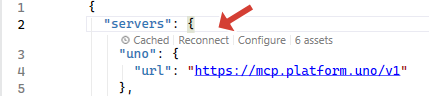
The Uno App MCP should now appear in the list of MCPs in Visual Studio.
The App MCP turns red in Visual Studio 2022/2026
In Visual Studio, the App MCP might turn red on some occasions. To fix this issue, click on the three dots on the right and select Reload.
The uno-app MCP failed to start
The Uno Platform App MCP may fail to start in Claude/Codex/Copilot CLI when it is started in a folder that does not contain an Uno Platform project.
To fix this issue, change directories to a folder that contains the .sln or .slnx file of your project.
Diagnosing Dev Server issues
Tip
When the App MCP fails to start, run uno-devserver disco from your solution directory.
Check that hostPath is resolved and that there are no errors. Pass --json for machine-readable output.
See Diagnostics (disco) for a full guide.