Toolbar and External Tool Window
The Toolbar provides quick access to Hot Design tools and is now available in two configurations: fixed in-app or in a separate external window. This flexibility lets you choose the layout that best fits your workflow and screen space.
Toolbar Overview
The Toolbar contains all the essential Hot Design controls:
- Enter/Exit Hot Design mode
- Play/Pause to test your app
- Undo/Redo changes
- Form Factor and zoom settings
- Theme toggle (light/dark)
- Connection Status and Hot Reload updates
- Visibility Options to show/hide tool panels
Fixed In-App Toolbar
By default, the Toolbar appears as a fixed bar at the top of your running app window.

Using the Fixed Toolbar
- Click any toolbar button to activate its function.
- Use keyboard shortcuts for quick actions (e.g.,
Kto toggle All Elements visibility). - The toolbar remains visible as you design, without moving or resizing.
External Tool Window
Alternatively, you can open Hot Design tools in a separate external window — useful when working on smaller screens or when you want to keep your app view clean and uncluttered.
Enable External Tool Window
To move tools to an external window:
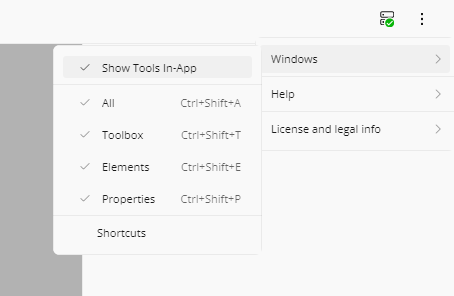
- Click the Overflow Menu (three dots) in the toolbar.
- Toggle Window > Show Tools In-App.
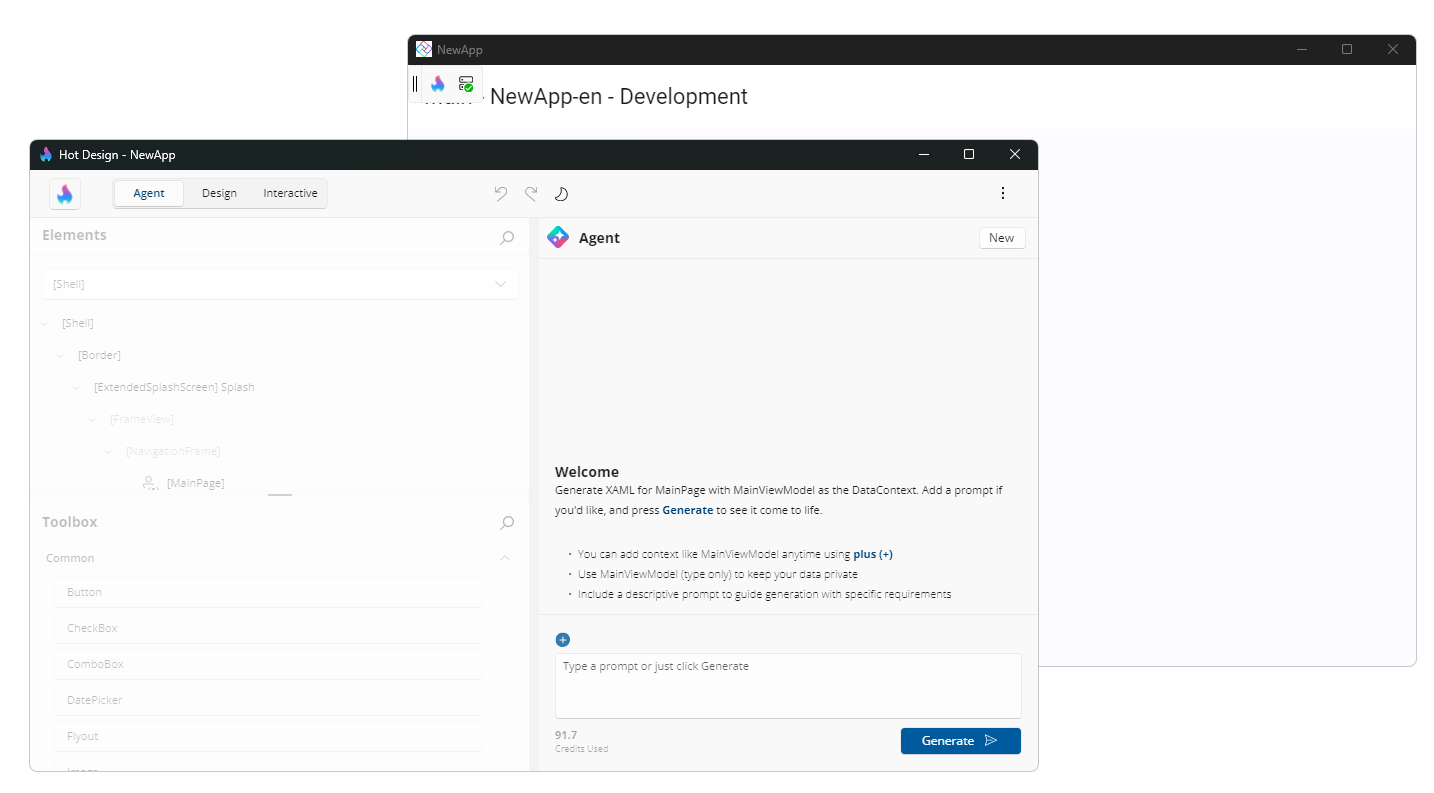
- A new external window launches with a full copy of the toolbar and all tool panels.
What Happens When You Launch External Window
- A separate window process opens on your screen (independent of your app window)
- The toolbar and all tool panels (Elements, Toolbox, Properties) appear in the external window
- Your app view becomes larger and less cluttered
- All tools communicate with your running app in real-time — changes made in the external window are reflected in your app immediately
Advantages of External Window
- Maximizes app canvas space
- Better for small/mobile device screens
- Keep tools on a second monitor or separate workspace
- Cleaner main app view during design sessions
- Ideal for mobile (iOS, Android) development
Returning to In-App Tools
To switch back to fixed in-app toolbar:
- In the external window, click Overflow Menu > Window > Show Tools In-App.
- The external window closes.
- The toolbar and panels reappear in your main app view at the top.
Toolbar Location Persistence
Your choice of in-app or external window is remembered and will be restored when you:
- Exit and re-enter Hot Design mode
- Close and restart your app
- Switch between different design sessions
No need to reconfigure your preference each time — Hot Design remembers your layout choice.
Platform-Specific Behavior
Desktop and WebAssembly
Both fixed in-app and external window modes work smoothly. External window is especially useful when you have multiple monitors.
Mobile Targets (iOS, Android)
- External window is the default for mobile targets to preserve app screen space.
- Fixed in-app toolbar is still available, but takes up valuable screen real estate on smaller devices.
Recommendation
- Desktop development: Use fixed in-app for simplicity, or external window if you have extra screen space.
- Mobile development: Use external window to see your app layout on the full device screen.
Troubleshooting
External Window Won't Open
- Cause: External tool process failed to launch.
- Solution: Check that you have sufficient system resources and that no errors appear in the app output. Try closing and reopening Hot Design.
External Window Lost or Hidden
- Cause: The external window may be off-screen or minimized.
- Solution: Close the external window from the Overflow Menu and launch it again.
Tools and App Not Syncing
- Cause: Connection between the external window and app was lost.
- Solution: Check your connection status (view icon in toolbar). If offline, reconnect and try again.
Related Topics
- Toolbar — Detailed toolbar button reference
- Getting Started — Set up Hot Design for your first time
- Keyboard Shortcuts — Quick reference for all keyboard shortcuts