Image Attachment in Chat
The Hot Design Agent supports image attachment, allowing you to include images in your chat prompts. This feature enables you to reference visual designs, mockups, screenshots, or reference images when requesting AI-assisted UI generation and modifications.
Supported Image Formats
The image attachment feature supports the following file formats:
.jpg/.jpeg— JPEG images.png— PNG images (with transparency support)
Tip
PNG is recommended for images with text or detailed UI (thanks to lossless compression and transparency support), while JPEG is suitable for photos or gradients where smaller file sizes are preferred.
Attaching Images to Chat
- In the Chat panel, locate the file attachment button (usually a paperclip or plus icon).
- Click the button to open the file picker dialog.
- Browse your file system and select one or more image files.
- The images appear as thumbnail chips in the chat input area.
- Type your chat prompt and send — the images are included with your message.
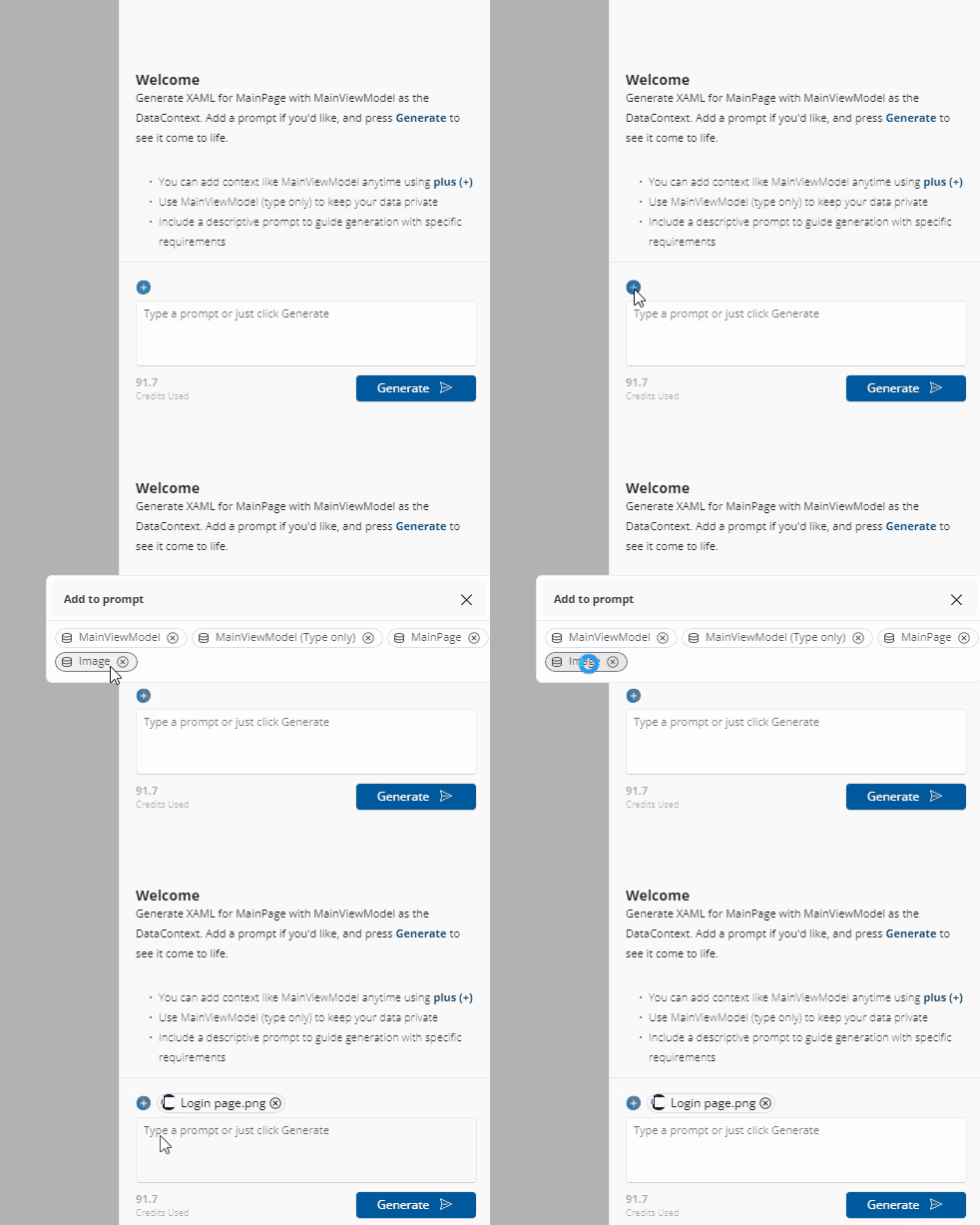
Image Thumbnails in Chat
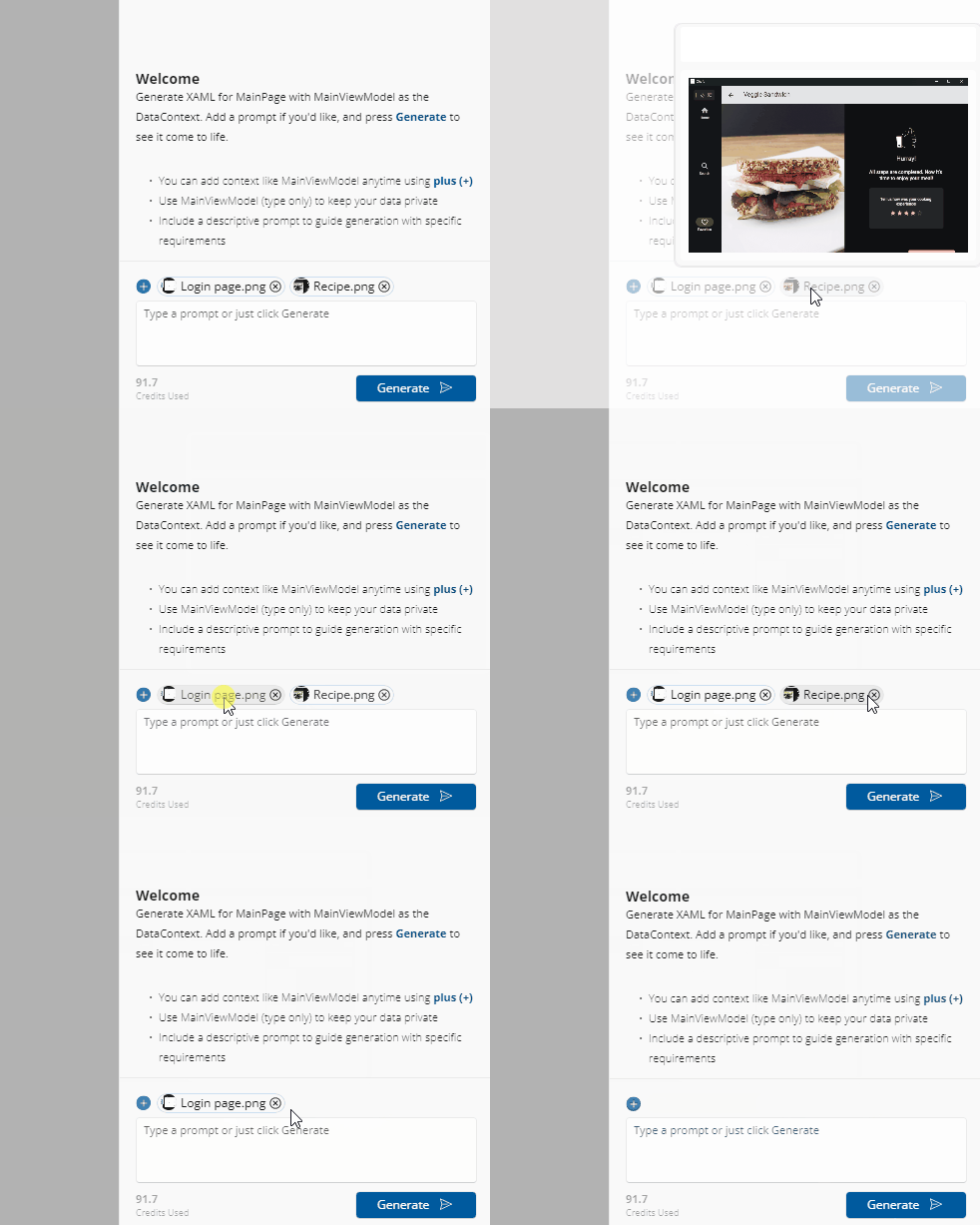
Once attached, images appear as small thumbnail chips (16x16 pixels) in the chat input area. This compact representation shows you at a glance which images are included with your message without cluttering the interface.
Managing Attached Images
- View Full Image: Click a thumbnail to see a preview of the image.
- Remove Image: Click the X button on the thumbnail to remove that image from your message before sending.
- Multiple Images: You can attach multiple images in a single message.
Using Images in Chat Prompts
Describe Your Design Intent
When attaching images, include a clear description in your chat message. For example:
Example 1 — Design Mockup:
"Here's a mockup of a product card. Can you generate XAML that matches this layout? The card should show an image, product name, price, and a button." (Attach: mockup.png)
Example 2 — Screenshot Reference:
"I want a sidebar that looks like this. The icons are on the left, labels on the right. Make it dark-themed." (Attach: sidebar-reference.png)
Example 3 — Multiple References:
"Use these two designs as reference. The top panel should look like the first image, and the bottom section like the second image." (Attach: header.png, footer.png)
Chat Agent Processing
The Hot Design Agent will:
- Analyze the attached images to understand layouts, colors, and design intent
- Read your text description to understand your requirements
- Generate XAML code that matches the visual reference
- Suggest responsive layouts and best practices based on the design
Image Size and Performance
Recommended Image Specifications
- Max size: No strict limit, but smaller images process faster
- Recommended: 1-4 MB per image for optimal performance
- Resolution: 1024x768 pixels or smaller is typically sufficient for design reference
Large Images
If you attach very large images (10+ MB):
- Processing may take longer
- The agent may down-scale internally to optimize processing
- Consider cropping or resizing images before attachment for faster chat responses
Note
Image quality matters more than size. A crisp 500x500 image is more useful than a blurry 2000x2000 image.
Practical Use Cases
1. Design Mockup to XAML
You have a Figma or Adobe XD mockup. Attach a screenshot and ask:
"Generate a XAML layout for this mobile app design. Include responsive breakpoints for phone and tablet."
2. Reference Component Library
Show the agent examples of existing components and ask:
"Here are three button styles from our design system. Create XAML that implements all three variants."
3. Layout Inspiration
Attach screenshots from other apps and ask:
"I like this navigation pattern from the reference image. Can you build a similar sidebar navigation for my app?"
4. Screenshot-Driven Iteration
After generating UI, take a screenshot and ask for refinements:
"Here's what my app looks like now. Make the buttons larger and add more spacing between sections."
Limitations and Considerations
What Images Can Help With
- Layout and positioning reference
- Color palette and theme reference
- Component sizing and proportions
- Navigation structure and flow
- Typography and text layout
What Images Cannot Do
- Replace detailed text descriptions (always provide context)
- Guarantee pixel-perfect matching (XAML rendering varies by platform)
- Replace accessibility requirements (describe alt text, keyboard navigation separately)
- Handle animated or interactive behaviors (describe in text)
Best Practices
- Combine Images with Descriptions: Always include both visual reference and written requirements.
- Use Clear Images: Ensure mockups and screenshots are sharp and readable.
- Crop Irrelevant Areas: Remove unnecessary parts of screenshots to focus the agent's attention.
- Provide Color Context: Mention color palette or theme if not obvious from the image.
- Specify Platforms: Mention if the design is for mobile, web, or desktop.
Related Topics
- Hot Design Agent — Overview of AI-powered design assistance