Uno.Cupertino
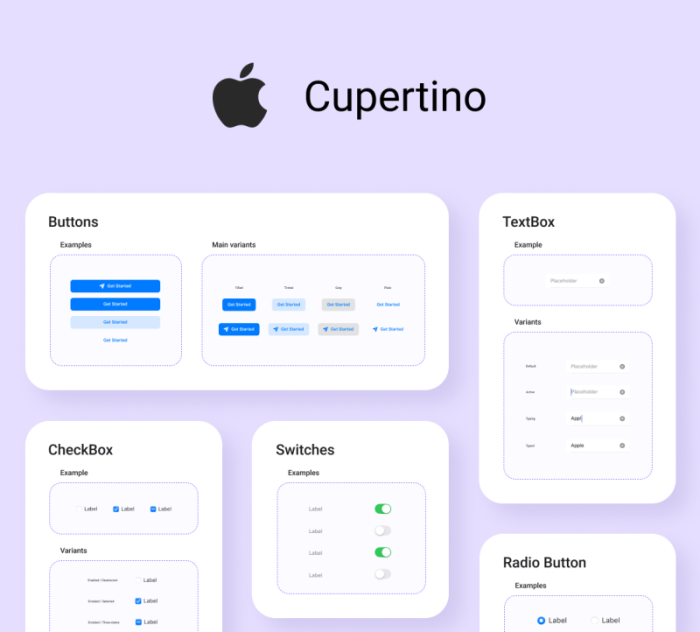
Uno Cupertino is an add-on package that lets you apply Cupertino - Human Interface Guideline styling to your application with a few lines of code.
Getting Started
Note
As of Uno Platform 4.7, the solution template of an Uno app has changed. There is no longer a Shared project (.shproj), it has been replaced with a regular cross-platform library containing all user code files, referred to as the App Code Library project. This also implies that package references can be included in a single location without the previous need to include those in all project heads.
Creating a new project with Uno.Cupertino installed from command-line
Install
dotnet newtemplates with:dotnet new install Uno.TemplatesCreate a new application with:
dotnet new unoapp -o AppName -theme cupertino
Installing Uno.Cupertino in existing project that uses class library
In the Solution Explorer panel, right-click on your app's App Code Library project (
PROJECT_NAME.csproj) and selectManage NuGet Packages...Install the
Uno.Cupertino.WinUIAdd the following Cupertino resources
AppResources.xaml:<ResourceDictionary> <ResourceDictionary.MergedDictionaries> <!-- Load Uno.Cupertino resources --> <CupertinoColors xmlns="using:Uno.Cupertino" /> <CupertinoFonts xmlns="using:Uno.Cupertino" /> <CupertinoResources xmlns="using:Uno.Cupertino" /> </ResourceDictionary.MergedDictionaries> </ResourceDictionary>
Installing Uno.Cupertino on previous versions of Uno Platform
If your application is based on the older solution template that includes a shared project (.shproj), follow these steps:
Open an existing Uno project
In the Solution Explorer panel, right-click on your solution name and select
Manage NuGet Packages for Solution .... Choose either:- The
Uno.Cupertinopackage when targetting Xamarin/UWP - The
Uno.Cupertino.WinUIpackage when targetting net6.0+/WinUI
- The
Select the following projects for installation:
PROJECT_NAME.Wasm.csprojPROJECT_NAME.Mobile.csproj(orPROJECT_NAME.iOS.csproj,PROJECT_NAME.Droid.csproj, andPROJECT_NAME.macOS.csprojif you have an existing project)PROJECT_NAME.Skia.Gtk.csprojPROJECT_NAME.Skia.WPF.csprojPROJECT_NAME.Windows.csproj(orPROJECT_NAME.UWP.csprojfor existing projects)
Add the following resources inside
App.xaml:<Application ...> <Application.Resources> <ResourceDictionary> <ResourceDictionary.MergedDictionaries> <!-- Load WinUI resources --> <XamlControlsResources xmlns="using:Microsoft.UI.Xaml.Controls" /> <!-- Load Uno.Cupertino resources --> <CupertinoColors xmlns="using:Uno.Cupertino" /> <CupertinoFonts xmlns="using:Uno.Cupertino" /> <CupertinoResources xmlns="using:Uno.Cupertino" /> <!-- Load custom application resources --> <!-- ... --> </ResourceDictionary.MergedDictionaries> </ResourceDictionary> </Application.Resources> </Application>
Customization
Customize Color Palette
In the application's App Code Library project (
PROJECT_NAME.csproj), add a new Resource Dictionary namedCupertinoColorsOverride.xamlSave the new override file within the App Code Library, for example, under
Style/Application.Replace the content with:
<ResourceDictionary xmlns="http://schemas.microsoft.com/winfx/2006/xaml/presentation"
                    xmlns:x="http://schemas.microsoft.com/winfx/2006/xaml">
    <ResourceDictionary.ThemeDictionaries>

        <!-- Light Theme -->
        <ResourceDictionary x:Key="Light">
            <!-- Override CupertinoBlueBrush -->
            <Color x:Key="CupertinoBlueBrush">#6750A4</Color>

            <!-- Add more overrides here -->
            <!-- ... -->
        </ResourceDictionary>

        <!-- Dark Theme -->
        <ResourceDictionary x:Key="Dark">
            <!-- Override CupertinoBlueBrush -->
            <Color x:Key="CupertinoBlueBrush">#D0BCFF</Color>

            <!-- Add more overrides here -->
            <!-- ... -->
        </ResourceDictionary>

    </ResourceDictionary.ThemeDictionaries>
</ResourceDictionary>
In
AppResources.xaml, update<CupertinoColors />with the override from the previous steps:<CupertinoColors xmlns="using:Uno.Cupertino" OverrideSource="ms-appx:///PROJECT_NAME/Style/Application/CupertinoColorsOverride.xaml" />
Change Default Font
By default, Uno.Cupertino comes pre-packaged with the SF Pro FontFamily and automatically includes them in your application. Upon installation of the Uno.Cupertino package, you will have a CupertinoFontFamily resource available.
If you would like Uno.Cupertino to use a different font, you can override the default FontFamily following these steps:
Add the custom font following Custom Fonts documentation.
In the application's App Code Library project (
PROJECT_NAME.csproj), add a new Resource Dictionary namedCupertinoFontsOverride.xaml.Save the new override file within the App Code Library, for example, under
Style/Application.Assuming the font file has been placed in the App Code Library within, for example, a directory such as
Assets/Fonts/MyCustomFont.ttf, your override file would look like the following:<ResourceDictionary xmlns="http://schemas.microsoft.com/winfx/2006/xaml/presentation" xmlns:x="http://schemas.microsoft.com/winfx/2006/xaml"> <FontFamily x:Key="CupertinoFontFamily">ms-appx:///PROJECT_NAME/Assets/Fonts/MyCustomFont.ttf</FontFamily> </ResourceDictionary>In
AppResources.xaml, update<CupertinoFonts />with the override from the previous steps:<CupertinoFonts xmlns="using:Uno.Cupertino" OverrideSource="ms-appx:///PROJECT_NAME/Style/Application/CupertinoFontsOverride.xaml" />