How to use Tabs component
Overview
Tabs help the organization of content and data sets. Tabs components can host from 1 to 5 TabBarItems. Tabs can either have a fixed width in which to display all its items or it can scroll its TabBarItems horizontally.
Tabs can be found in the Assets panel in the Navigation group of components.
Steps
- Drag Tabs component into the
Pagelayer of the design (as tabs aren’t part of the scrollable content of a page); - Select the amount of TabBarItems as well as their behaviour (Fixed or Scrollable) from the variants panel;
- Text and Icon options can be managed by selecting the
◇ TabBarItemlayers to reveal their distinctive variants in the Figma Variants panel.
Styling Tabs
Tabs can be styled as either Top Tabs or Bottom Tabs
When applying color to tabs there are 2 patterns that can be used:
- Transparent surface with
PrimaryColorfor the selectedTabBarItemcontent and OnSurface @ 38% opacity for unselectedTabBarItemcontent; - Filled surface with
PrimaryColor, withOnPrimaryColorfor the selectedTabBarItemcontent andOnPrimaryColor@ 38% opacity for unselectedTabBarItemcontent.
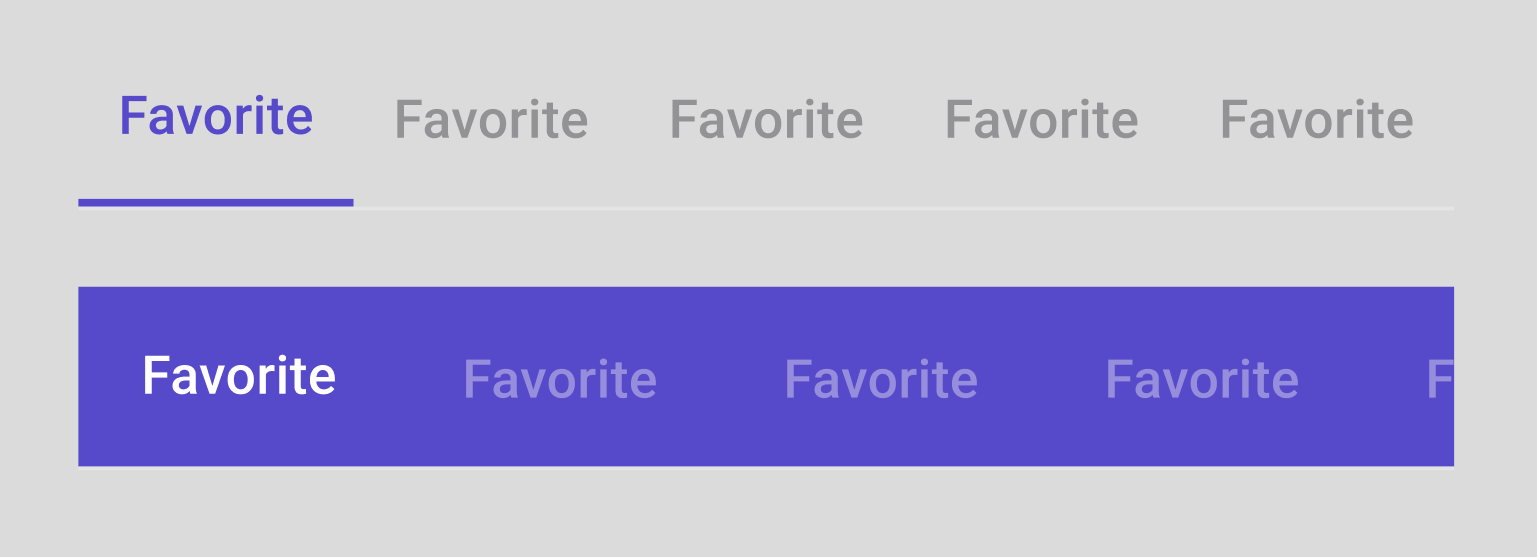
Tab Variants
Item count: 1, 2, 3, 4, 5
Scrollable or Fixed
TabBarItem
Text: True or False
Icon: Top, Only, Side, None