How to add a Splash Screen
This article covers how to add a splash screen to your application.
Tip
The complete source code that goes along with this guide is available in the unoplatform/Uno.Samples GitHub repository - SplashScreenSample
Prerequisites
- Visual Studio 2019 16.3 or later
- Universal Windows Platform workload installed
- Mobile Development with .NET (Xamarin) workload installed
- ASP.NET and web workload installed
- Uno Platform Extension installed
Tip
For a step-by-step guide to installing the prerequisites for your preferred IDE and environment, consult the Get Started guide.
Step 1 - Shared splash Screen image resources
Prepare the images of your splash screen in different resolution, eg:
Name Width Height SplashScreen.scale-100.png 216 148 SplashScreen.scale-125.png 270 185 SplashScreen.scale-150.png 324 222 SplashScreen.scale-200.png 432 296 SplashScreen.scale-300.png 648 444 SplashScreen.scale-400.png 864 592 Refer to this table for the different scales required.
You can also just provide a single image named as
SplashScreen.pngwithout thescale-000qualifier.Note
Regardless if you provide a single image or multiple images, you would always refer to this image as
SplashScreen.png.Add these images under the
Assets\folder of theMyAppClass Library project, right-click on each image, go toPropertiesand set their build action asContent.
Step 2 - UWP
In the
.UWPproject, delete the old splash screen fileSplashScreen.scale-200.pngunder theAsset\folder.Note
Do not confuse this with the one from
.Sharedproject.Open the
Package.appxmanifestand navigate toVisual Assets > SplashScreen.Make sure the value for
Preview Images > Splash Screenis set to:Assets\SplashScreen.png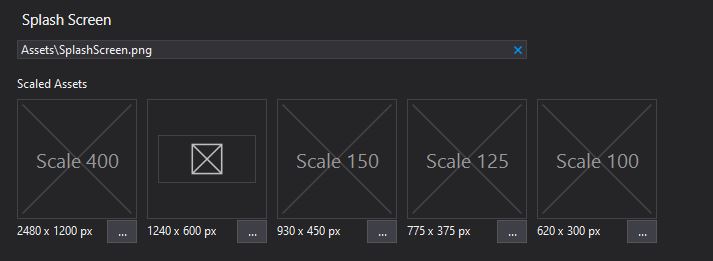
Step 3 - Android
In the
.Droidproject, openResources/values/Styles.xml, and add an<item>under theAppThemestyle.<item name="android:windowBackground">@drawable/splash</item>Navigate to
Resources/drawable, and create a XML file namedsplash.xml:<?xml version="1.0" encoding="utf-8"?> <layer-list xmlns:android="http://schemas.android.com/apk/res/android"> <item> <!-- background color --> <color android:color="#101010"/> </item> <item> <!-- splash image --> <bitmap android:src="@drawable/assets_splashscreen" android:tileMode="disabled" android:gravity="center" /> </item> </layer-list>Important
Before Uno.UI 4.5, the
@drawable/assets_splashscreensource should be@drawable/splashscreen. See the breaking changes section of that release.Make sure
splash.xmlis added as anAndroidResourcein the Droid project file :[Project-name].Droid.csproj. This is not always done automatically, especially ifsplash.xmlis created and added outside the IDE.<ItemGroup> <AndroidResource Include="Resources\drawable\splash.xml" /> </ItemGroup>Tip
After modifying
splash.xml, you may run into errors like these while trying to debug:Resources\drawable-mdpi\SplashScreen.png : error APT2126: file not found. Resources\drawable-hdpi\SplashScreen.png : error APT2126: file not found.Simply rebuild the
.Droidproject to get rid of these error.
Step 4 - iOS
In the
.iOSproject, delete the old splash screen files:Resources\SplashScreen@2x.pngResources\SplashScreen@3x.pngLaunchScreen.storyboard
Create a new
StoryBoardnamedLaunchScreen.storyboard:- Right-click the
.iOSproject > Add > New Item ... - Visual C# > Apple > Empty Storyboard
- Right-click the
In the
Toolboxwindow, drag and drop aView Controllerand then anImageViewinside theView Controller. Enable theIs initial View Controller-flag on theView Controller.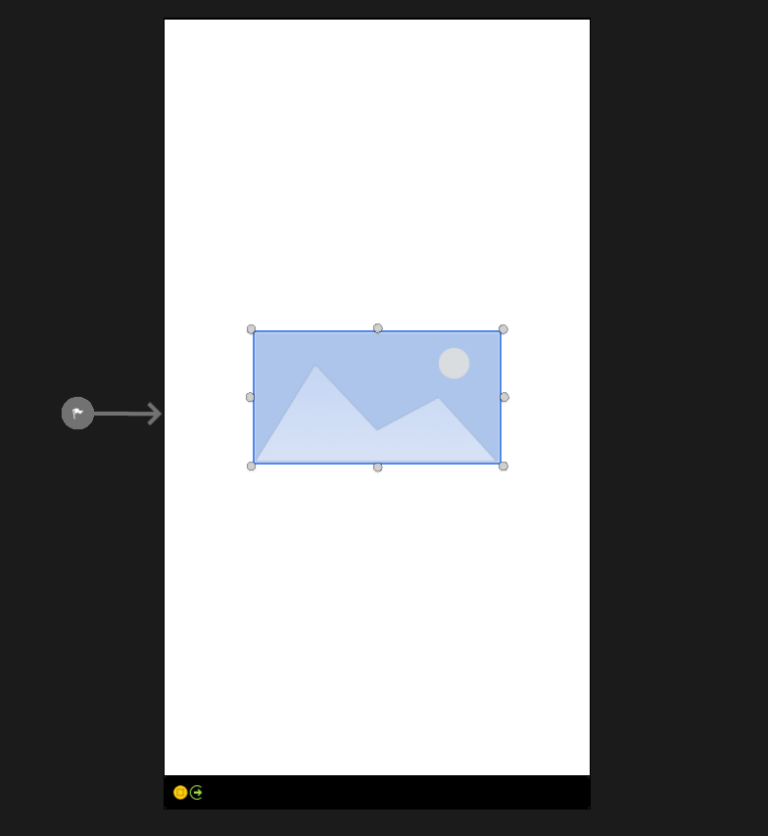
To have an image fill the screen, set your constraints as below
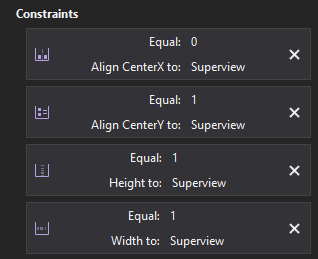
Set the
Content ModetoAspect Fit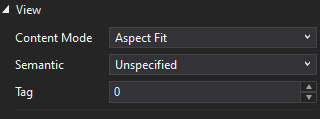
In the
Properties > Storyboard Documentwindow, select theCan be Launch Screencheckbox.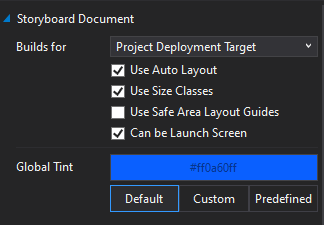
Close the designer and open the
.storyboardfile.Add your image path to the
Image View<imageView ... image="Assets/SplashScreen">Open to
info.plistand update theUILaunchStoryboardNamevalue toLaunchScreen.Tip
iOS caches the splash screen to improve the launch time, even across re-installs. In order to see the actual changes made, you need to restart the iPhone or simulator. Alternatively, you can rename the
CFBundleIdentifierininfo.plistincrementally (eg: MyApp1 -> MyApp2) before each build.
Step 5 - WebAssembly
In the
.WASMproject, navigate toWasmScripts/AppManifest.jsAdd your splash screen image
var UnoAppManifest = {
    splashScreenImage: "Assets/SplashScreen.scale-200.png",
    splashScreenColor: "#0078D7",
    displayName: "SplashScreenSample"
}
Note
Currently, you need to set an explicit scale for the splash screen image.
The splashScreenColor property allows you to set the background color for the splash screen. If you want to make the splash screen theme-aware, you can omit this property or set it to "transparent".
If you use the theme-aware splash screen background, you can also set the darkThemeBackgroundColor and lightThemeBackgroundColor properties to adjust the background color for each theme. Default values are "#202020" for dark theme and "#F3F3F3" for light theme.
Table of scales
| Scale | UWP | iOS | Android |
|---|---|---|---|
100 |
scale-100 | @1x | mdpi |
125 |
scale-125 | N/A | N/A |
150 |
scale-150 | N/A | hdpi |
200 |
scale-200 | @2x | xhdpi |
300 |
scale-300 | @3x | xxhdpi |
400 |
scale-400 | N/A | xxxhdpi |
Get the complete code
See the completed sample on GitHub: SplashScreenSample
Help! I'm having trouble
Tip
If you ran into difficulties with any part of this guide, you can:
- Ask for help on our Discord channel - #uno-platform
- Ask a question on Stack Overflow with the 'uno-platform' tag